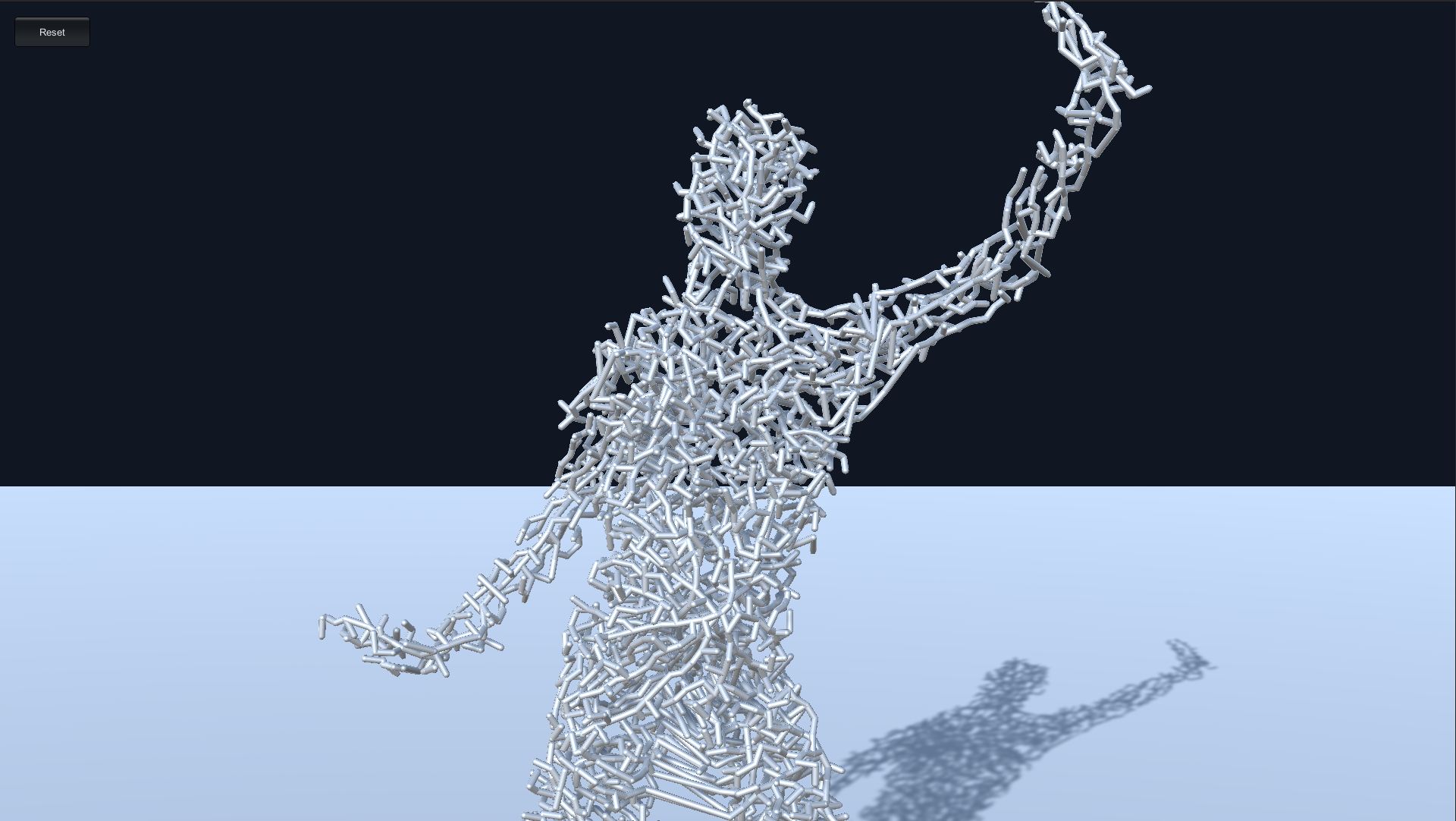
図1.1: SkinnedAnimation.scene
This chapter introduces the GPU implementation of the Space Colonization Algorithm, an algorithm that generates a shape that blanchs along a point cloud, and its application examples.
The sample in this chapter is "Space Colonization" at
https://github.com/IndieVisualLab/UnityGraphicsProgramming4
.
図1.1: SkinnedAnimation.scene
The Space Colonization Algorithm was developed by Adam et al. * 1 as a tree modeling method.
[*1] http://algorithmicbotany.org/papers/colonization.egwnp2007.html
A method of generating a branching shape from a given point cloud,
It has the feature.
This chapter introduces the GPU implementation of this algorithm and application examples combined with skinning animation.
First, I will explain the Space Colonization Algorithm. The general steps of the algorithm are divided as follows.
In the initialization phase, the point cloud is prepared as an attraction (point that will be the seed of the branch). Place one or more Nodes (branch branch points) in the attraction. This first placed Node will be the starting point for your branch.
In the figure below, Attraction is represented by a round dot and Node is represented by a square dot.
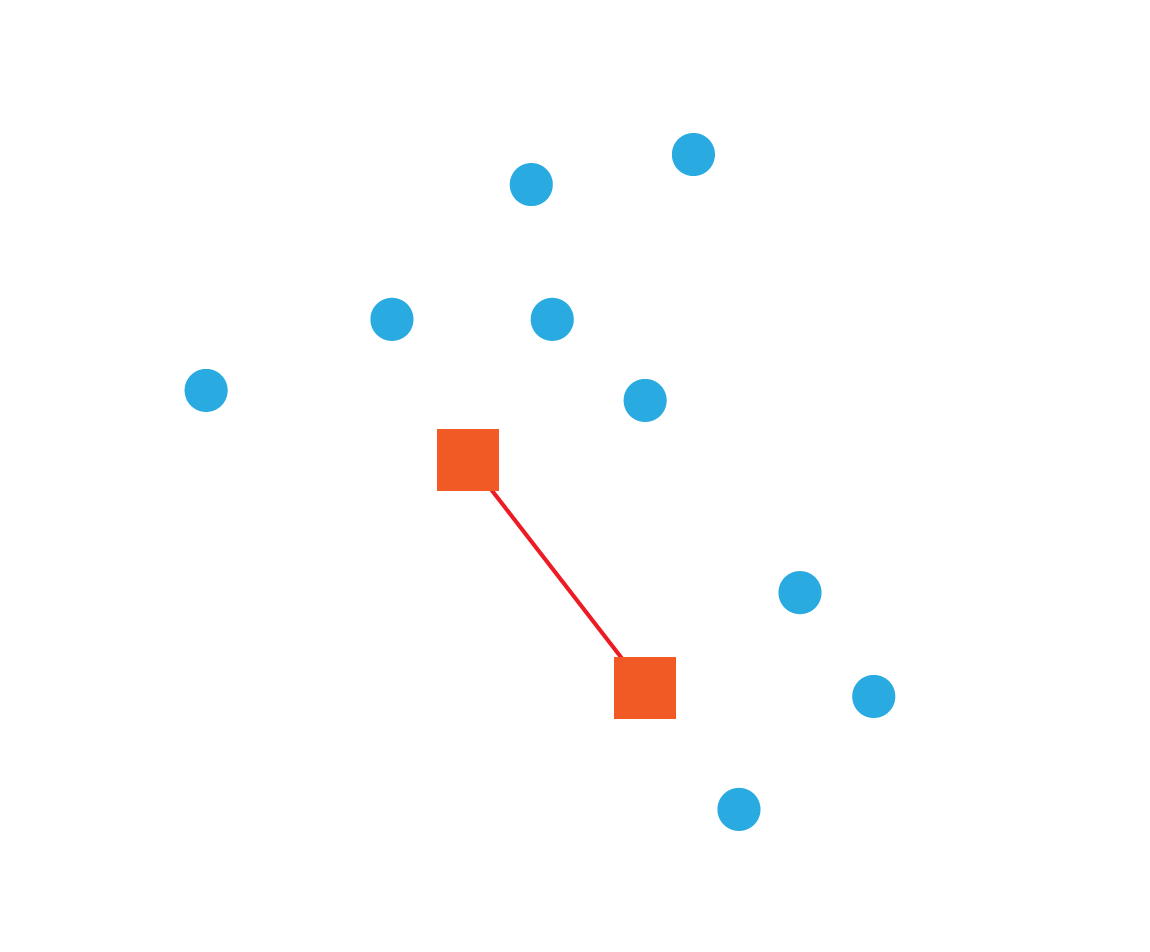
Figure 1.2: Setup --Attraction and Node Initialization Round dots represent Attraction and square dots represent Node.
For each attraction, find the closest Node within the influence distance.
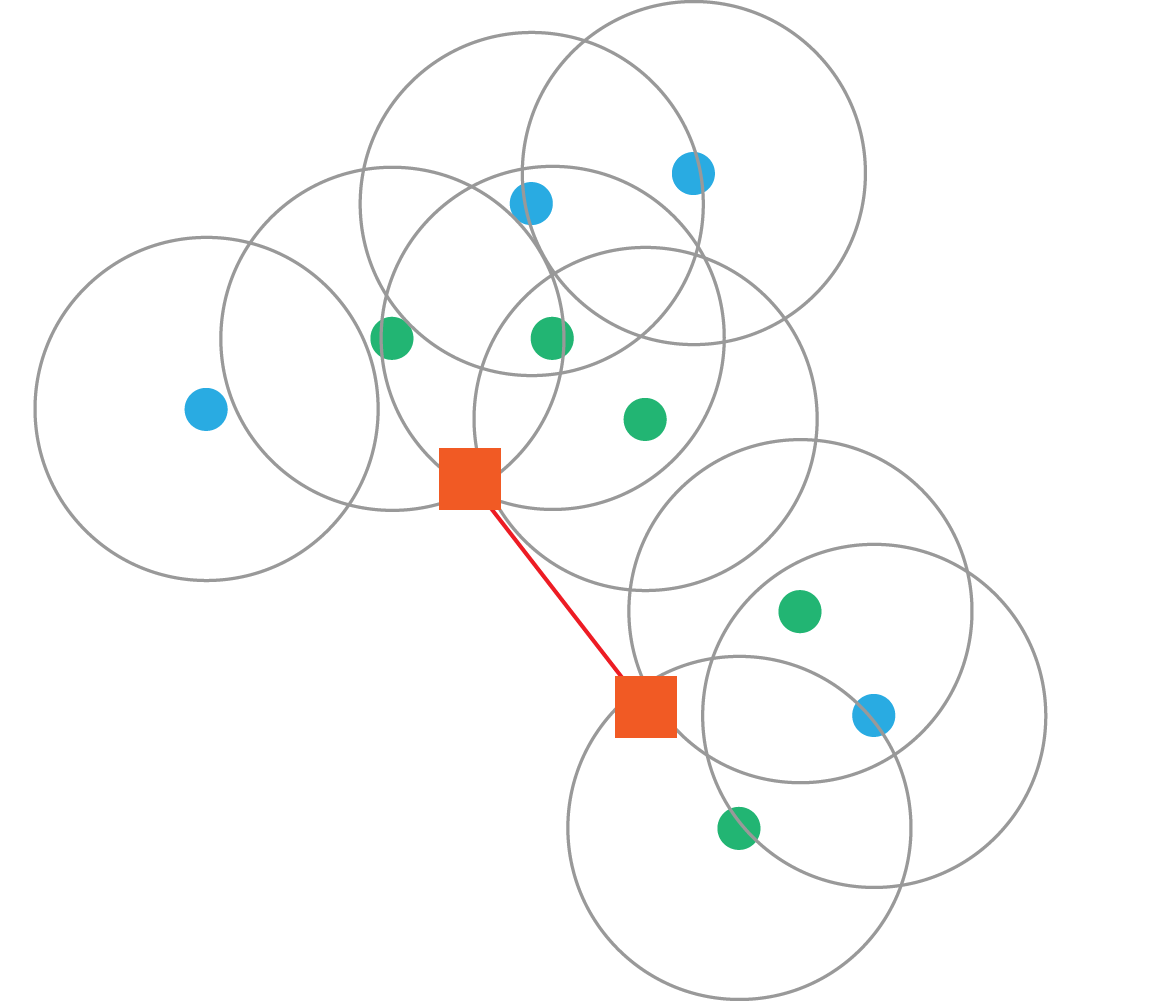
Figure 1.3: Search-Search for the nearest Node in the area of influence from each Attraction
For each Node, determine the direction to extend the branch based on the attraction within the range of influence, and the point beyond the extension by the growth distance is the candidate point (Candidate) for the point to generate a new Node. )will do.
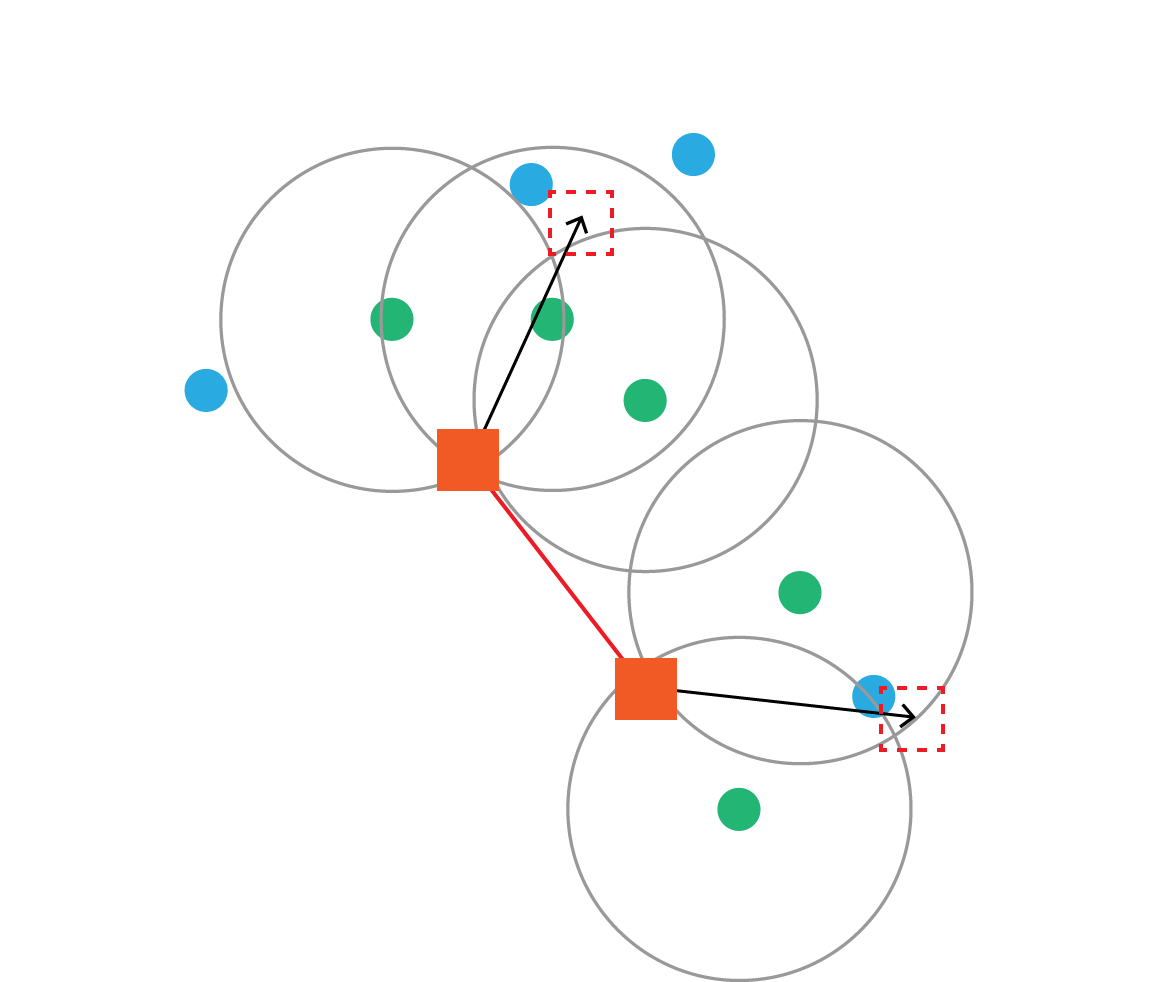
Figure 1.4: Attract-Extend a branch from each Node and determine candidate points to generate new Nodes
Create a new Node at the Candidate position and connect the original Node with Edge to extend the branch.
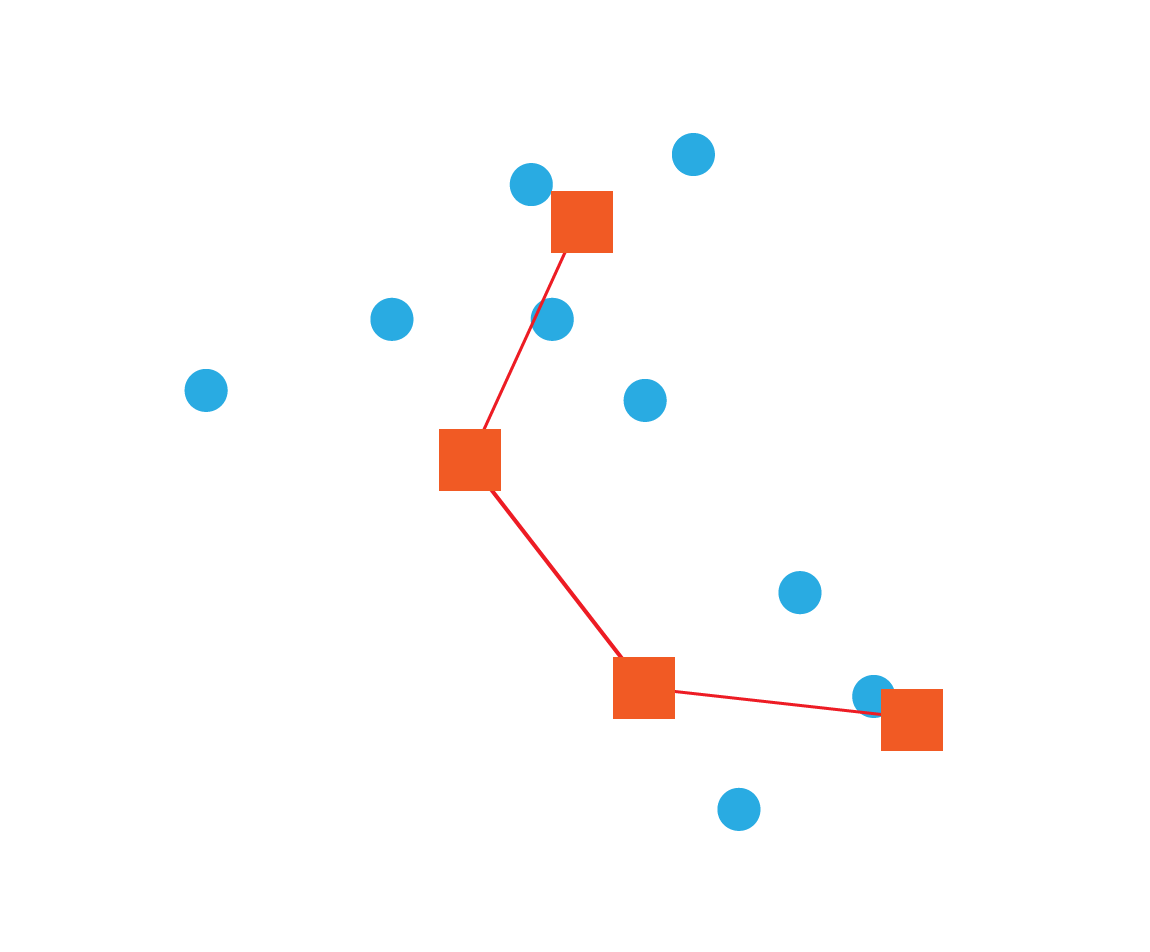
Figure 1.5: Connect-Connecting a new node to an existing node to extend a branch
Deletes an attraction that is within the kill distance from the node.
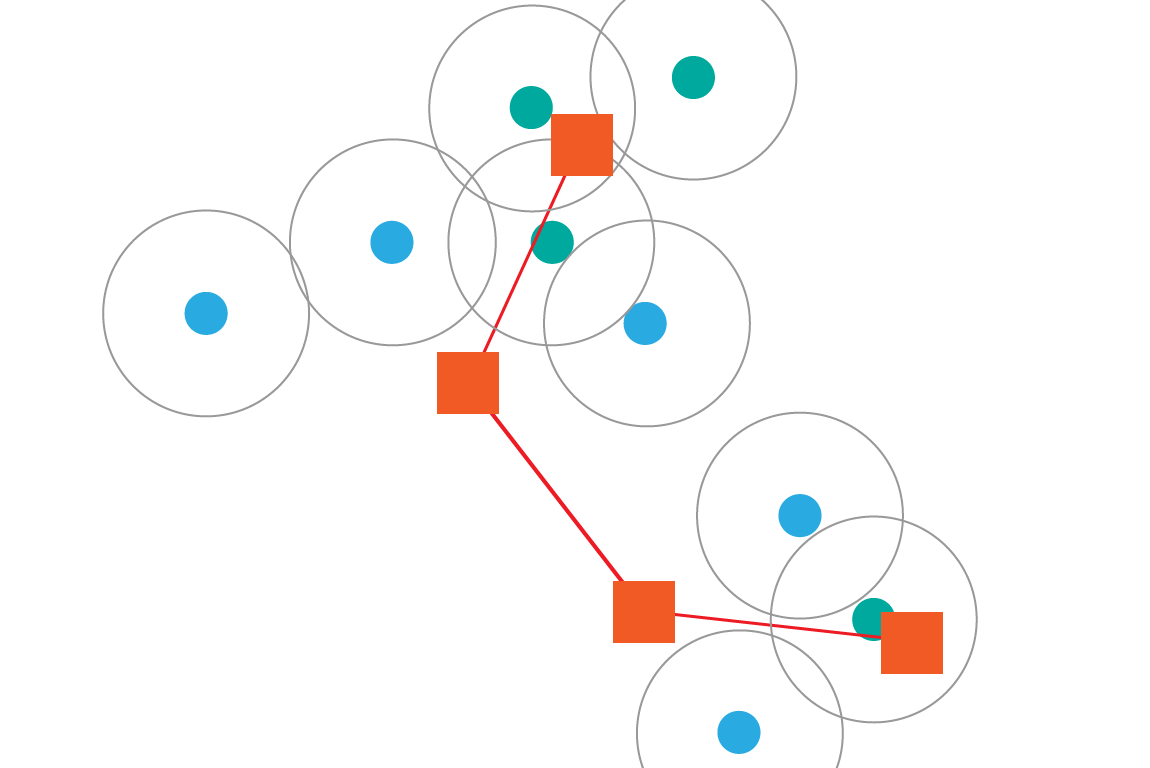
Figure 1.6: Remove --Search Node for attractions within the removal range
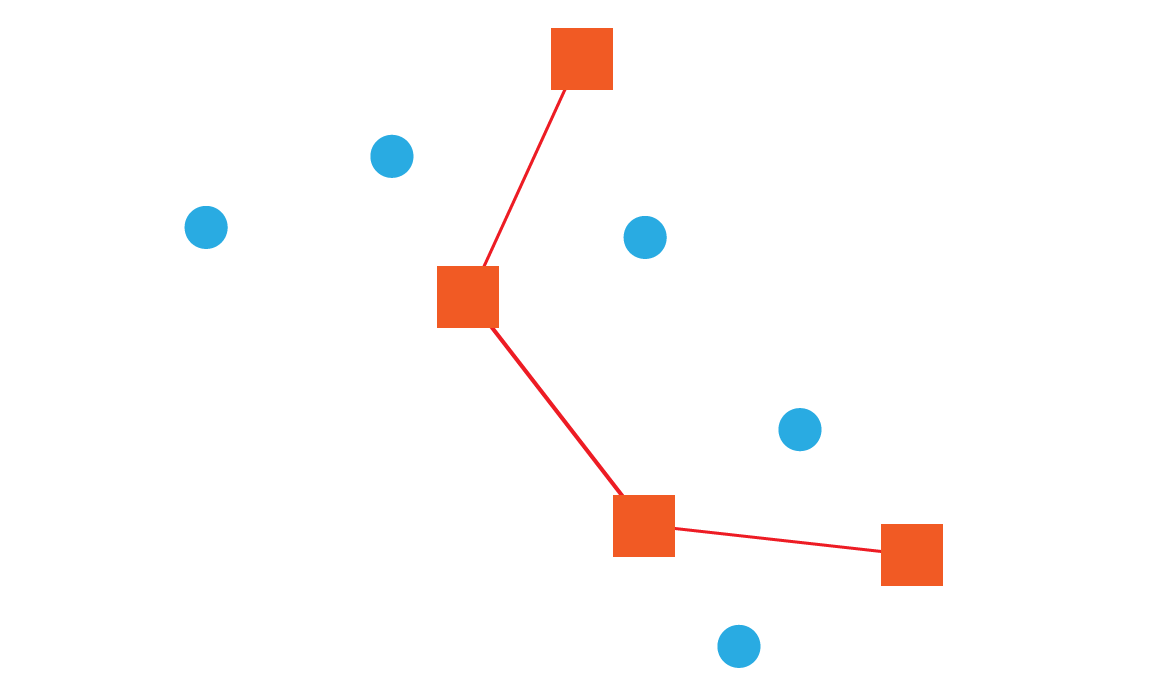
Figure 1.7: Remove-Removes Attraction found within the removal range
Grow Node and go back to Step.2.
The general flow of the entire algorithm is shown in the figure below.
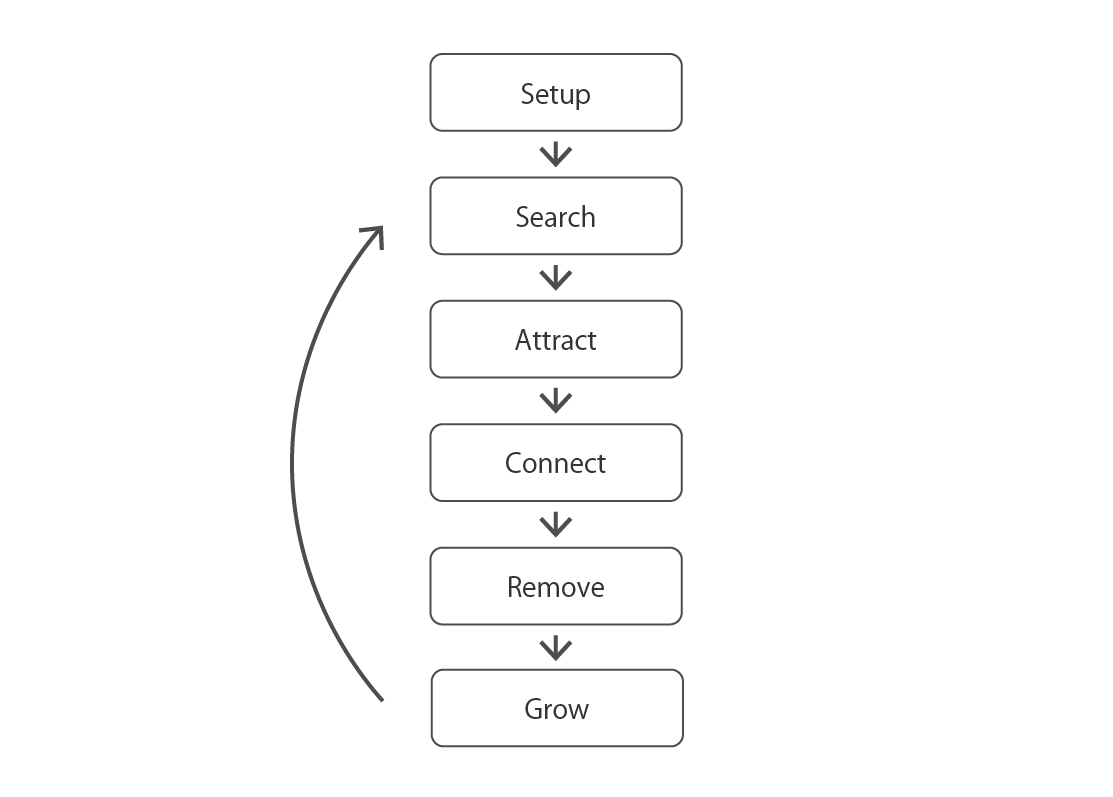
Figure 1.8: Rough flow of the algorithm
Now, I will explain the concrete implementation of the algorithm.
As an element that increases or decreases in the Space Colonization Algorithm
Is required, but in order to express these on GPGPU, Append / ConsumeStructuredBuffer is used for some elements.
Append / ConsumeStructuredBuffer is explained in Unity Graphics Programming vol.3 "GPU-Based Cellular Growth Simulation".
The structure of Attraction is defined as follows.
Attraction.cs
public struct Attraction {
    public Vector3 position; // position
    public int nearest; // index of the nearest Node
    public uint found; // Whether a nearby Node was found
    public uint active; // Whether it is a valid attraction (1 is valid, 0 is deleted)
}
The increase / decrease of attraction is expressed by determining whether it is a deleted attraction by the active flag.
In Space Colonization, it is necessary to prepare a point cloud of Attraction in the initialization phase. In the sample SpaceColonization.cs, point clouds are randomly scattered inside the sphere and used as the position of Attraction.
SpaceColonization.cs
    // Randomly sprinkle points inside the sphere to generate an attraction
    var attractions = GenerateSphereAttractions();
    count = attractions.Length;

    // Initialize the Attraction buffer
    attractionBuffer = new ComputeBuffer(
        count,
        Marshal.SizeOf(typeof(Attraction)),
        ComputeBufferType.Default
    );
    attractionBuffer.SetData(attractions);
The structure of Node is defined as follows.
Node.cs
public struct Node {
    public Vector3 position; // position
    public float t; // Growth rate (0.0 ~ 1.0)
    public float offset; // Distance from Root (Node depth)
    public float mass; // mass
    public int from; // index of branch source Node
    public uint active; // Whether it is a valid Node (1 is valid)
}
Node resources
It is managed by two buffers.
SpaceColonization.cs
  // Actual Node data
  nodeBuffer = new ComputeBuffer(
    count,
    Marshal.SizeOf(typeof(Node)),
    ComputeBufferType.Default
  );

  // Object pool
  nodePoolBuffer = new ComputeBuffer(
    count,
    Marshal.SizeOf(typeof(int)),
    ComputeBufferType.Append
  );
  nodePoolBuffer.SetCounterValue(0);
The structure of Candidate is defined as follows.
Candidate.cs
public struct Candidate
{
    public Vector3 position; // position
    public int node; // index of the original Node of the candidate point
}
Candidate is represented by Append / ConsumeStructuredBuffer.
SpaceColonization.cs
    candidateBuffer = new ComputeBuffer(
        count,
        Marshal.SizeOf(typeof(Candidate)),
        ComputeBufferType.Append
    );
    candidateBuffer.SetCounterValue(0);
The structure of Edge is defined as follows.
Edge.cs
public struct Edge {
    public int a, b; // index of two Nodes connected by Edge
}
Edge is represented by Append / Consume Structured Buffer like Candidate.
SpaceColonization.cs
    edgeBuffer = new ComputeBuffer(
        count * 2,
        Marshal.SizeOf(typeof(Edge)),
        ComputeBufferType.Append
    );
    edgeBuffer.SetCounterValue(0);
Now that we have the necessary resources, we will implement each step of the algorithm in GPGPU with Compute Shader.
In the initialization phase
to hold.
Pick up some from the prepared Attraction and generate an initial Node at that position.
SpaceColonization.cs
    var seeds = Enumerable.Range(0, seedCount).Select((_) => {
        return attractions[Random.Range(0, count)].position;
    }).ToArray();
    Setup(seeds);
SpaceColonization.cs
protected void Setup(Vector3[] seeds)
{
    var kernel = compute.FindKernel("Setup");
    compute.SetBuffer(kernel, "_NodesPoolAppend", nodePoolBuffer);
    compute.SetBuffer(kernel, "_Nodes", nodeBuffer);
    GPUHelper.Dispatch1D(compute, kernel, count);

    ...
}
The Setup kernel initializes the object pool. Store the index in the Node's object pool and turn off the active flag for that Node.
SpaceColonization.compute
void Setup (uint3 id : SV_DispatchThreadID)
{
  uint idx = id.x;
  uint count, stride;
  _Nodes.GetDimensions(count, stride);
  if (idx >= count)
    return;

  _NodesPoolAppend.Append(idx);

  Node n = _Nodes[idx];
  n.active = false;
  _Nodes[idx] = n;
}
This will turn off the active flags for all Nodes and create an object pool with Node indexes.
Now that the object pool has been initialized, it's time to create the initial seed node.
The initial node is generated by executing the Seed kernel with the seed position (Vector3 []) prepared earlier as input.
SpaceColonization.cs
...

// seedBuffer is automatically disposed when it goes out of scope
using(
    ComputeBuffer seedBuffer = new ComputeBuffer(
        seeds.Length,
        Marshal.SizeOf(typeof(Vector3))
    )
)
{
    seedBuffer.SetData(seeds);
    kernel = compute.FindKernel("Seed");
    compute.SetFloat("_MassMin", massMin);
    compute.SetFloat("_MassMax", massMax);
    compute.SetBuffer(kernel, "_Seeds", seedBuffer);
    compute.SetBuffer(kernel, "_NodesPoolConsume", nodePoolBuffer);
    compute.SetBuffer(kernel, "_Nodes", nodeBuffer);
    GPUHelper.Dispatch1D(compute, kernel, seedBuffer.count);
}

// Initialize the number of Nodes and Edges
nodesCount = nodePoolBuffer.count;
edgesCount = 0;

...
The Seed kernel takes a position from the Seeds buffer and creates a Node at that position.
SpaceColonization.compute
void Seed (uint3 id : SV_DispatchThreadID)
{
  uint idx = id.x;

  uint count, stride;
  _Seeds.GetDimensions(count, stride);
  if (idx >= count)
    return;

  Node n;

  // Create a new Node (see below)
  uint i = CreateNode(n);

  // Set Seed position to Node position
  n.position = _Seeds[idx];
  n.t = 1;
  n.offset = 0;
  n.from = -1;
  n.mass = lerp(_MassMin, _MassMax, nrand(id.xy));
  _Nodes[i] = n;
}
Create a new Node with the CreateNode function. Extracts the index from the object pool ConsumeStructuredBuffer and returns the initialized Node.
SpaceColonization.compute
uint CreateNode(out Node node)
{
  uint i = _NodesPoolConsume.Consume();
  node.position = float3(0, 0, 0);
  node.t = 0;
  node.offset = 0;
  node.from = -1;
  node.mass = 0;
  node.active = true;
  return i;
}
This is the end of the initialization phase.
Each step of the looping algorithm shown in Figure 1.8 is performed within the Step function.
SpaceColonization.cs
protected void Step(float dt)
{
    // Do not run when the object pool is empty
    if (nodesCount > 0)
    {
        Search();   // Step.2
        Attract();  // Step.3
        Connect();  // Step.4
        Remove();   // Step.5

        // Get the number of data that Append / ConsumeStructuredBuffer has
        CopyNodesCount();
        CopyEdgesCount();
    }
    Grow(dt);       // Step.6
}
From each attraction, find the closest Node within the influence distance.
SpaceColonization.cs
protected void Search()
{
    var kernel = compute.FindKernel("Search");
    compute.SetBuffer(kernel, "_Attractions", attractionBuffer);
    compute.SetBuffer(kernel, "_Nodes", nodeBuffer);
    compute.SetFloat("_InfluenceDistance", unitDistance * influenceDistance);
    GPUHelper.Dispatch1D(compute, kernel, count);
}
The GPU kernel implementation is as follows.
SpaceColonization.compute
void Search (uint3 id : SV_DispatchThreadID)
{
  uint idx = id.x;
  uint count, stride;
  _Attractions.GetDimensions(count, stride);
  if (idx >= count)
    return;

  Attraction attr = _Attractions[idx];

  attr.found = false;
  if (attr.active)
  {
    _Nodes.GetDimensions(count, stride);

    // Search for Nodes closer than influence distance
    float min_dist = _InfluenceDistance;

    // index of the nearest Node
    uint nearest = -1;

    // Execute a loop for all Nodes
    for (uint i = 0; i < count; i++)
    {
      Node n = _Nodes[i];

      if (n.active)
      {
        float3 dir = attr.position - n.position;
        float d = length(dir);
        if (d < min_dist)
        {
          // Update the nearest Node
          min_dist = d;
          nearest = i;

          // Set the index of the neighboring Node
          attr.found = true;
          attr.nearest = nearest;
        }
      }
    }

    _Attractions[idx] = attr;
  }
}
For each Node, determine the direction to extend the branch based on the attraction within the range of influence, and the point beyond the extension by the growth distance is the candidate point (Candidate) for the point to generate a new Node. )will do.
SpaceColonization.cs
protected void Attract()
{
    var kernel = compute.FindKernel("Attract");
    compute.SetBuffer(kernel, "_Attractions", attractionBuffer);
    compute.SetBuffer(kernel, "_Nodes", nodeBuffer);

    candidateBuffer.SetCounterValue (0); // Initialize the buffer that stores the candidate points
    compute.SetBuffer(kernel, "_CandidatesAppend", candidateBuffer);

    compute.SetFloat("_GrowthDistance", unitDistance * growthDistance);

    GPUHelper.Dispatch1D(compute, kernel, count);
}
The GPU kernel implementation is as follows. Please refer to the code contents and comments of the Attract kernel for the calculation method of the position of the candidate point.
SpaceColonization.compute
void Attract (uint3 id : SV_DispatchThreadID)
{
  uint idx = id.x;
  uint count, stride;
  _Nodes.GetDimensions(count, stride);
  if (idx >= count)
    return;

  Node n = _Nodes[idx];

  // Node is valid and
  // Create a new Node if the growth rate (t) is greater than or equal to the threshold (1.0)
  if (n.active && n.t >= 1.0)
  {
    // Accumulation variable to extend the branch
    float3 dir = (0.0).xxx;
    uint counter = 0;

    // Run a loop for all attractions
    _Attractions.GetDimensions(count, stride);
    for (uint i = 0; i < count; i++)
    {
      Attraction attr = _Attractions[i];
      // Search for the attraction whose node is the nearest neighbor
      if (attr.active && attr.found && attr.nearest == idx)
      {
        // Normalize the vector from Node to Attraction and add it to the accumulation variable
        float3 dir2 = (attr.position - n.position);
        dir + = normalize (dir2);
        counter++;
      }
    }

    if (counter > 0)
    {
      Candidate c;

      // Take the average of the unit vectors from Node to Attraction
      // Set it as the position of the candidate point extended from the Node by the growth distance
      dir = dir / counter;
      c.position = n.position + (dir * _GrowthDistance);

      // Set the index of the original Node that extends to the candidate point
      c.node = idx;

      // Add to candidate point buffer
      _CandidatesAppend.Append(c);
    }
  }
}
Create a new Node based on the candidate point buffer generated by the Attract kernel, and extend the branch by connecting the Nodes with Edge.
In the Connect function, the number of kernel executions is determined by comparing the remaining number of object pools (nodesCount) with the size of the candidate point buffer so that data retrieval (Consume) is not executed when the Node object pool (nodePoolBuffer) is empty. I am.
SpaceColonization.cs
protected void Connect()
{
    var kernel = compute.FindKernel("Connect");
    compute.SetFloat("_MassMin", massMin);
    compute.SetFloat("_MassMax", massMax);
    compute.SetBuffer(kernel, "_Nodes", nodeBuffer);
    compute.SetBuffer(kernel, "_NodesPoolConsume", nodePoolBuffer);
    compute.SetBuffer(kernel, "_EdgesAppend", edgeBuffer);
    compute.SetBuffer(kernel, "_CandidatesConsume", candidateBuffer);

    // The number of data (nodeCount) of the Node object pool acquired by CopyNodeCount
    // Restrict so that it does not exceed
    var connectCount = Mathf.Min(nodesCount, CopyCount(candidateBuffer));
    if (connectCount > 0)
    {
        compute.SetInt("_ConnectCount", connectCount);
        GPUHelper.Dispatch1D(compute, kernel, connectCount);
    }
}
Below is the implementation of the GPU kernel.
SpaceColonization.compute
void Connect (uint3 id : SV_DispatchThreadID)
{
  uint idx = id.x;
  if (idx >= _ConnectCount)
    return;

  // Extract candidate points from the candidate point buffer
  Candidate c = _CandidatesConsume.Consume();

  Node n1 = _Nodes [c.node];
  Node n2;

  // Generate Node at the position of the candidate point
  uint idx2 = CreateNode(n2);
  n2.position = c.position;
  n2.offset = n1.offset + 1.0; // Set the distance from Root (original Node + 1.0)
  n2.from = c.node; // Set the index of the original Node
  n2.mass = lerp(_MassMin, _MassMax, nrand(float2(c.node, idx2)));

  // Update Node buffer
  _Nodes[c.node] = n1;
  _Nodes[idx2] = n2;

  // Connect two Nodes with Edge (see below)
  CreateEdge(c.node, idx2);
}
The CreateEdge function creates an Edge based on the indexes of the two Nodes passed and adds it to the Edge buffer.
SpaceColonization.compute
void CreateEdge(int a, int b)
{
  Edge e;
  ea = a;
  e.b = b;
  _EdgesAppend.Append(e);
}
Remove the Attraction that is within the kill distance from the Node.
SpaceColonization.cs
protected void Remove()
{
    var kernel = compute.FindKernel("Remove");
    compute.SetBuffer(kernel, "_Attractions", attractionBuffer);
    compute.SetBuffer(kernel, "_Nodes", nodeBuffer);
    compute.SetFloat("_KillDistance", unitDistance * killDistance);
    GPUHelper.Dispatch1D(compute, kernel, count);
}
The GPU kernel implementation is as follows.
SpaceColonization.compute
void Remove(uint3 id : SV_DispatchThreadID)
{
  uint idx = id.x;
  uint count, stride;
  _Attractions.GetDimensions(count, stride);
  if (idx >= count)
    return;

  Attraction attr = _Attractions[idx];
  // Do not execute if the attraction has been deleted
  if (!attr.active)
    return;

  // Execute a loop for all Nodes
  _Nodes.GetDimensions(count, stride);
  for (uint i = 0; i < count; i++)
  {
    Node n = _Nodes[i];
    if (n.active)
    {
      // If there is a Node within the deletion range, turn off the active flag of Attraction and delete it
      float d = distance(attr.position, n.position);
      if (d < _KillDistance)
      {
        attr.active = false;
        _Attractions[idx] = attr;
        return;
      }
    }
  }
}
Grow Node.
When generating candidate points with the Attract kernel, it is used as a condition whether the growth rate (t) of Node is above the threshold value (if it is below the threshold value, no candidate points are generated), but the growth rate parameter is in this Grow kernel. I'm incrementing.
SpaceColonization.cs
protected void Grow(float dt)
{
    var kernel = compute.FindKernel("Grow");
    compute.SetBuffer(kernel, "_Nodes", nodeBuffer);

    var delta = dt * growthSpeed;
    compute.SetFloat("_DT", delta);

    GPUHelper.Dispatch1D(compute, kernel, count);
}
SpaceColonization.compute
void Grow (uint3 id : SV_DispatchThreadID)
{
  uint idx = id.x;
  uint count, stride;
  _Nodes.GetDimensions(count, stride);
  if (idx >= count)
    return;

  Node n = _Nodes[idx];

  if (n.active)
  {
    // Disperse the growth rate with the mass parameter randomly set for each Node
    n.t = saturate(n.t + _DT * n.mass);
    _Nodes[idx] = n;
  }
}
Now that we have a blanched shape with the above implementation, let's talk about how to render that shape.
First, simply render using Line Mesh.
Generate a simple Line Topology Mesh to draw a Line that represents a single Edge.
SpaceColonization.cs
protected Mesh BuildSegment()
{
    var mesh = new Mesh ();
    mesh.hideFlags = HideFlags.DontSave;
    mesh.vertices = new Vector3[2] { Vector3.zero, Vector3.up };
    mesh.uv = new Vector2[2] { new Vector2(0f, 0f), new Vector2(0f, 1f) };
    mesh.SetIndices(new int[2] { 0, 1 }, MeshTopology.Lines, 0);
    return mesh;
}
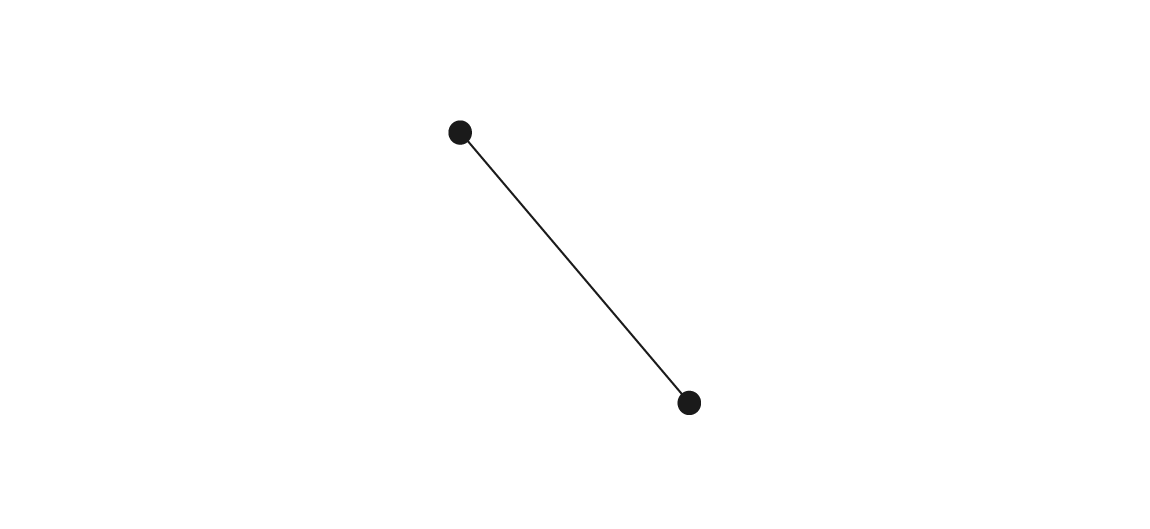
Figure 1.9: Line Topology Mesh with only two simple vertices
Display the branches generated by rendering a Segment (line segment) with only two vertices using GPU instancing for the number of Edges.
SpaceColonization.cs
// Generate a buffer that determines the number of meshes to render, required for GPU instancing
protected void SetupDrawArgumentsBuffers(int count)
{
    if (drawArgs[1] == (uint)count) return;

    drawArgs[0] = segment.GetIndexCount(0);
    drawArgs[1] = (uint)count;

    if (drawBuffer != null) drawBuffer.Dispose();
    drawBuffer = new ComputeBuffer(
        1,
        sizeof(uint) * drawArgs.Length,
        ComputeBufferType.IndirectArguments
    );
    drawBuffer.SetData(drawArgs);
}

...

// Perform rendering with GPU instancing
protected void Render(float extents = 100f)
{
    block.SetBuffer("_Nodes", nodeBuffer);
    block.SetBuffer("_Edges", edgeBuffer);
    block.SetInt("_EdgesCount", edgesCount);
    block.SetMatrix("_World2Local", transform.worldToLocalMatrix);
    block.SetMatrix("_Local2World", transform.localToWorldMatrix);
    Graphics.DrawMeshInstancedIndirect(
        segment, 0,
        material, new Bounds(Vector3.zero, Vector3.one * extents),
        drawBuffer, 0, block
    );
}
The shader for rendering (Edge.shader) generates an animation of the branch extending from the branch point by controlling the length of the Edge according to the growth rate parameter (t) of the Node.
Edge.shader
v2f vert(appdata IN, uint iid : SV_InstanceID)
{
  v2f OUT;
  UNITY_SETUP_INSTANCE_ID(IN);
  UNITY_TRANSFER_INSTANCE_ID(IN, OUT);

  // Get the corresponding Edge from the instance ID
  Edge e = _Edges[iid];

  // Get 2 Nodes from the index of Edge
  Node a = _Nodes[e.a];
  Node b = _Nodes [eb];

  float3 ap = a.position;
  float3 bp = b.position;
  float3 dir = bp - ap;

  // Determine the length of Edge from a to b according to the growth rate (t) of Node b
  bp = ap + normalize (dir) * length (dir) * bt;

  // Since the vertex ID (IN.vid) is 0 or 1, if it is 0, it refers to the node of a, and if it is 1, it refers to the position of Node of b.
  float3 position = lerp(ap, bp, IN.vid);

  float4 vertex = float4(position, 1);
  OUT.position = UnityObjectToClipPos(vertex);
  OUT.uv = IN.uv;

  // If Node is inactive or the instance ID is outside the total number of Edges, set alpha to 0 and do not draw
  OUT.alpha = (a.active && b.active) && (iid < _EdgesCount);

  return OUT;
}
With these implementations, the shape obtained by the Space Colonization Algorithm can be rendered using Line Topology. You can get the following picture by executing Line.scene.
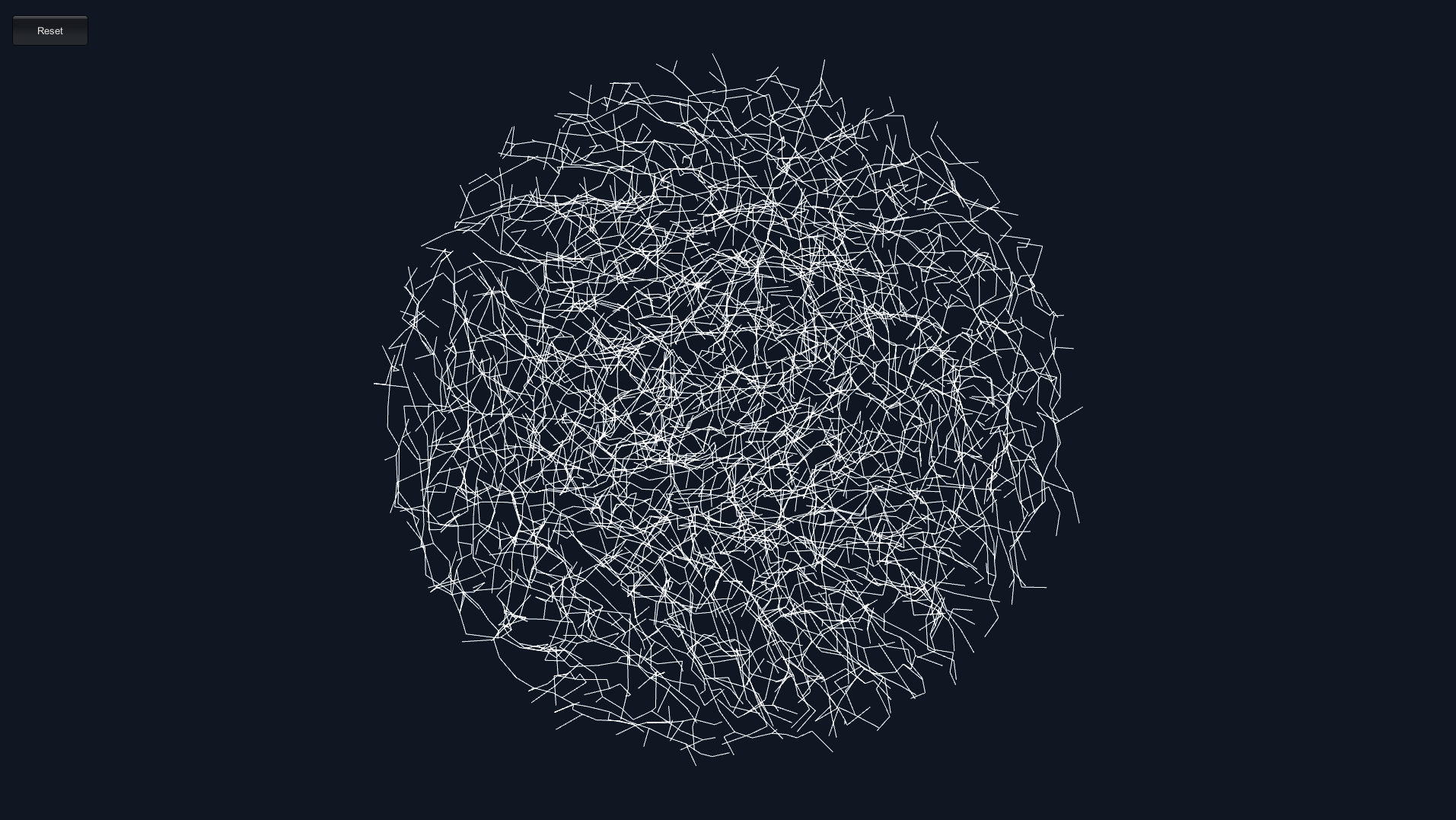
Figure 1.10: Line.scene --Example of rendering with Edge.shader
By converting the Line Topology Segment to a Capsule shape with the Geometry Shader, you can draw thick lines.
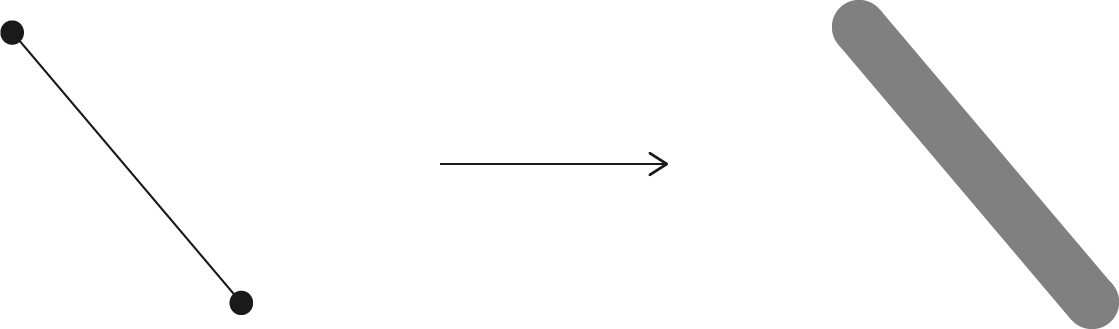
Figure 1.11: Convert Line Topology Segment to Capsule shape with Geometry Shader
The vertex shader is almost the same as Edge.shader, and Geometry Shader builds the Capsule shape. Only the important Geometry Shader implementations are listed below.
TubularEdge.shader
...
[maxvertexcount(64)]
void geom(line v2g IN[2], inout TriangleStream<g2f> OUT) {
  v2g p0 = IN[0];
  v2g p1 = IN[1];

  float alpha = p0.alpha;

  float3 t = normalize(p1.position - p0.position);
  float3 n = normalize(p0.viewDir);
  float3 bn = cross(t, n);
  n = cross(t, bn);

  float3 tp = lerp(p0.position, p1.position, alpha);
  float thickness = _Thickness * alpha;

  // Definition of Capsule mesh resolution
  static const uint rows = 6, cols = 6;
  static const float rows_inv = 1.0 / rows, cols_inv = 1.0 / (cols - 1);

  g2f00, o1;
  o0.uv = p0.uv; o0.uv2 = p0.uv2;
  o1.uv = p1.uv; o1.uv2 = p1.uv2;

  // Build aspects of the Capsule
  for (uint i = 0; i < cols; i++) {
    float r = (i * cols_inv) * UNITY_TWO_PI;

    float s, c;
    sincos(r, s, c);
    float3 normal = normalize(n * c + bn * s);

    float3 w0 = p0.position + normal * thickness;
    float3 w1 = p1.position + normal * thickness;
    o0.normal = o1.normal = normal;

    o0.position = UnityWorldToClipPos(w0);
    OUT.Append(o0);

    o1.position = UnityWorldToClipPos(w1);
    OUT.Append(o1);
  }
  OUT.RestartStrip();

  // Construction of Capsule tip (hemispherical)
  uint row, col;
  for (row = 0; row < rows; row++)
  {
    float s0 = sin((row * rows_inv) * UNITY_HALF_PI);
    float s1 = sin(((row + 1) * rows_inv) * UNITY_HALF_PI);
    for (col = 0; col < cols; col++)
    {
      float r = (col * cols_inv) * UNITY_TWO_PI;

      float s, c;
      sincos(r, s, c);

      float3 n0 = normalize(n * c * (1.0 - s0) + bn * s * (1.0 - s0) + t * s0);
      float3 n1 = normalize(n * c * (1.0 - s1) + bn * s * (1.0 - s1) + t * s1);

      o0.position = UnityWorldToClipPos(float4(tp + n0 * thickness, 1));
      o0.normal = n0;
      OUT.Append(o0);

      o1.position = UnityWorldToClipPos(float4(tp + n1 * thickness, 1));
      o1.normal = n1;
      OUT.Append(o1);
    }
    OUT.RestartStrip();
  }
}

...
The result looks like this: (TubularEdge.scene)
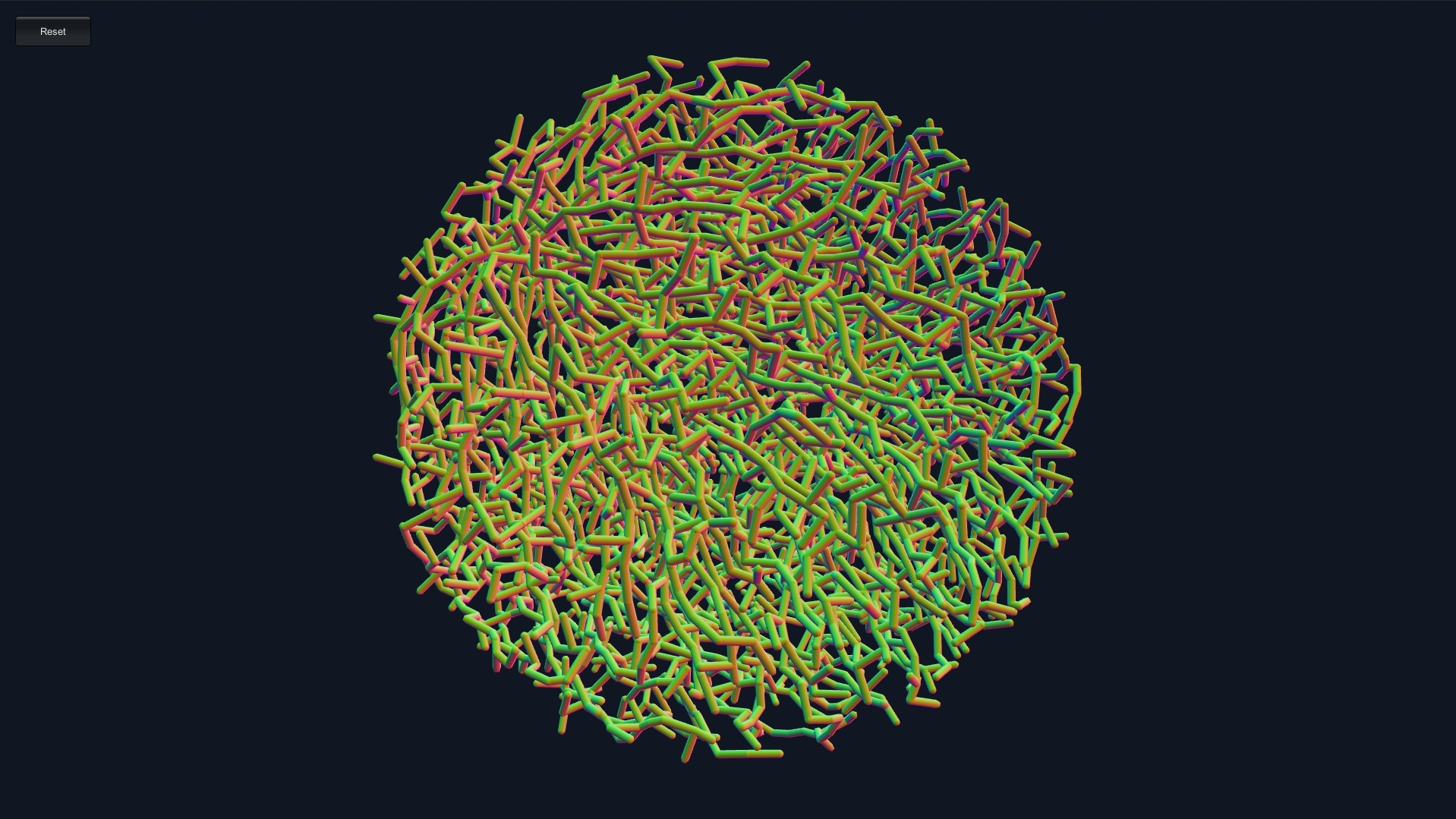
Figure 1.12: TubularEdge.scene --Example of rendering with TubularEdge.shader
Now that you can render Edge with a thick mesh, you can add lighting and so on.
With the above, we have realized the GPU implementation of Space Colonization. In this section, we will introduce the cooperation with skinning animation as an application example.
With this application, it is possible to realize an expression that blanchs along the animated model shape.
The cooperation with skinning animation is developed according to the following flow.
The structure of the previous example
Make changes to have the Bone index.
In this application, the number of bones that affect each node is limited to one. Originally, skinning animation could have multiple bones affecting each vertex, but in this example we simply limit it to only one.
SkinnedAttraction.cs
public struct SkinnedAttraction {
    public Vector3 position;
    public int bone; // boneのindex
    public int nearest;
    public uint found;
    public uint active;
}
SkinnedNode.cs
public struct SkinnedNode {
    public Vector3 position;
    public Vector3 animated; // Node position after skinning animation
    public int index0; // boneのindex
    public float t;
    public float offset;
    public float mass;
    public int from;
    public uint active;
}
SkinnedCandidate.cs
public struct SkinnedCandidate
{
    public Vector3 position;
    public int node;
    public int bone; // boneのindex
}
Prepare the animation model you want to link.
In this example, the model downloaded from Clara.io * 2 is used (the number of polygons is reduced by reduction with MeshLab * 3 ), and the animation is generated by mixamo * 4 .
[*2] https://clara.io/view/d49ee603-8e6c-4720-bd20-9e3d7b13978a
[*3] http://www.meshlab.net/
[*4] https://mixamo.com
In order to get the position of Attraction from the model volume, we use a package called VolumeSampler * 5 that generates a point cloud in the model volume .
[*5] https://github.com/mattatz/unity-volume-sampler
VolumeSampler acquires the volume of the model using the technique explained in Unity Graphics Programming vol.2 "Real-Time GPU-Based Voxelizer". First, the volume inside the mesh is acquired as Voxel, and Poisson Disk Sampling is executed based on it to generate a point cloud that fills the inside of the mesh.
To generate a point cloud asset using VolumeSampler, click Window → VolumeSampler from the Unity toolbar to display Window, and as shown in the figure below.
If you set and click the asset generation button, the Volume asset will be generated in the specified path.
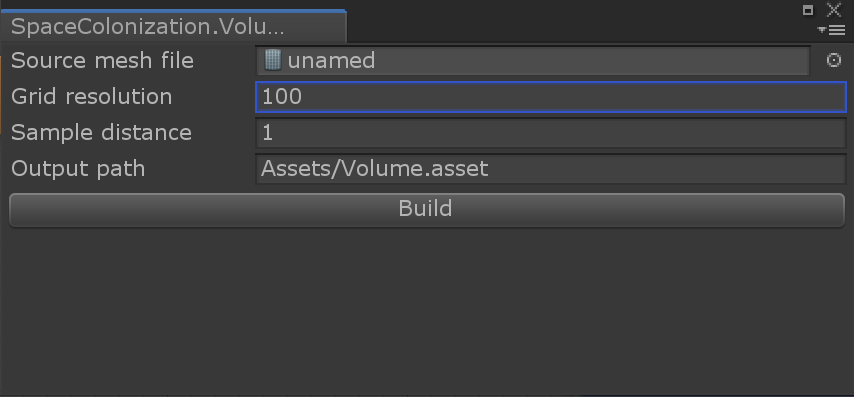
図1.13: VolumeSamplerWindow
Generate a SkinnedAttraction array from the point cloud asset (Volume class) generated from VolumeSampler and apply it to ComputeBuffer.
SkinnedSpaceColonization.cs
protected void Start() {
    ...
    // Generate a Skinned Attraction array from the point cloud of Volume
    attractions = GenerateAttractions(volume);
    count = attractions.Length;
    attractionBuffer = new ComputeBuffer(
        count,
        Marshal.SizeOf(typeof(SkinnedAttraction)),
        ComputeBufferType.Default
    );
    attractionBuffer.SetData(attractions);
    ...
}
Bone information of the nearest vertex from each position is applied to Skinned Attraction generated from the volume of Mesh.
The SetupSkin function prepares the vertices of the mesh and the bone buffer, and assigns the bone index to all Skinned Attraction on the GPU.
SkinnedSpaceColonization.cs
protected void Start() {
    ...
    SetupSkin();
    ...
}

...

protected void SetupSkin()
{
    var mesh = skinnedRenderer.sharedMesh;
    var vertices = mesh.vertices;
    var weights = mesh.boneWeights;
    var indices = new int[weights.Length];
    for(int i = 0, n = weights.Length; i < n; i++)
        indices[i] = weights[i].boneIndex0;

    using (
        ComputeBuffer
        vertBuffer = new ComputeBuffer(
            vertices.Length,
            Marshal.SizeOf(typeof(Vector3))
        ),
        boneBuffer = new ComputeBuffer(
            weights.Length,
            Marshal.SizeOf(typeof(uint))
        )
    )
    {
        vertBuffer.SetData(vertices);
        boneBuffer.SetData(indices);

        var kernel = compute.FindKernel("SetupSkin");
        compute.SetBuffer(kernel, "_Vertices", vertBuffer);
        compute.SetBuffer(kernel, "_Bones", boneBuffer);
        compute.SetBuffer(kernel, "_Attractions", attractionBuffer);
        GPUHelper.Dispatch1D(compute, kernel, attractionBuffer.count);
    }
}
Below is the implementation of the GPU kernel.
SkinnedSpaceColonization.compute
void SetupSkin (uint3 id : SV_DispatchThreadID)
{
  uint idx = id.x;
  uint count, stride;
  _Attractions.GetDimensions(count, stride);
  if (idx >= count)
    return;

  SkinnedAttraction attr = _Attractions[idx];

  // Get the index of the nearest vertex from the position of Skinned Attraction
  float3 p = attr.position;
  uint closest = -1;
  float dist = 1e8;
  _Vertices.GetDimensions(count, stride);
  for (uint i = 0; i < count; i++)
  {
    float3 v = _Vertices[i];
    float l = distance(v, p);
    if (l < dist)
    {
      dist = l;
      closest = i;
    }
  }

  // Set the bone index of the nearest vertex to Skinned Attraction
  attr.bone = _Bones[closest];
  _Attractions[idx] = attr;
}
In this application, some GPU kernels are modified to get the bone information needed for skinning animation in each step of the Space Colonization Algorithm.
The contents of the GPU kernel are almost the same, but for the generated SkinnedNode, it is necessary to obtain Bone information (Bone index) from the nearest Skinned Attraction, so
In the two GPU kernels, neighborhood search logic has been added.
SkinnedSpaceColonization.compute
void Seed (uint3 id : SV_DispatchThreadID)
{
  uint idx = id.x;

  uint count, stride;
  _Seeds.GetDimensions(count, stride);
  if (idx >= count)
    return;

  SkinnedNode n;
  uint i = CreateNode(n);
  n.position = n.animated = _Seeds[idx];
  n.t = 1;
  n.offset = 0;
  n.from = -1;
  n.mass = lerp(_MassMin, _MassMax, nrand(id.xy));

  // Search for the nearest Skinned Attraction and
  // Copy the Bone index
  uint nearest = -1;
  float dist = 1e8;
  _Attractions.GetDimensions(count, stride);
  for (uint j = 0; j < count; j++)
  {
    SkinnedAttraction attr = _Attractions[j];
    float l = distance(attr.position, n.position);
    if (l < dist)
    {
      nearest = j;
      dist = l;
    }
  }
  n.index0 = _Attractions[nearest].bone;

  _Nodes[i] = n;
}

...

void Attract (uint3 id : SV_DispatchThreadID)
{
  uint idx = id.x;
  uint count, stride;
  _Nodes.GetDimensions(count, stride);
  if (idx >= count)
    return;

  SkinnedNode n = _Nodes[idx];

  if (n.active && n.t >= 1.0)
  {
    float3 dir = (0.0).xxx;
    uint counter = 0;

    float dist = 1e8;
    uint nearest = -1;

    _Attractions.GetDimensions(count, stride);
    for (uint i = 0; i < count; i++)
    {
      SkinnedAttraction attr = _Attractions[i];
      if (attr.active && attr.found && attr.nearest == idx)
      {
        float3 dir2 = (attr.position - n.position);
        dir + = normalize (dir2);
        counter++;

        // Search for the nearest Skinned Attraction
        float l2 = length(dir2);
        if (l2 < dist)
        {
          dist = l2;
          nearest = i;
        }
      }
    }

    if (counter > 0)
    {
      SkinnedCandidate c;
      dir = dir / counter;
      c.position = n.position + (dir * _GrowthDistance);
      c.node = idx;
      // Set the bone index of the nearest Skinned Attraction
      c.bone = _Attractions[nearest].bone;
      _CandidatesAppend.Append(c);
    }
  }
}
With the above implementation, you can now execute the Space Colonization Algorithm while setting the Bone information for Node.
After that, you can apply skinning animation to Node by getting the required Bone matrix from SkinnedMeshRenderer and moving the position of SkinnedNode on the GPU according to the deformation of Bone.
SkinnedSpaceColonization.cs
protected void Start() {
    ...
    // Create a buffer for the bind pose matrix
    var bindposes = skinnedRenderer.sharedMesh.bindposes;
    bindPoseBuffer = new ComputeBuffer(
        bindposes.Length,
        Marshal.SizeOf(typeof(Matrix4x4))
    );
    bindPoseBuffer.SetData(bindposes);
    ...
}

protected void Animate()
{
    // Create a buffer representing the SkinnedMeshRenderer's Bone matrix that is updated as the animation plays
    var bones = skinnedRenderer.bones.Select(bone => {
        return bone.localToWorldMatrix;
    }).ToArray();
    using (
        ComputeBuffer boneMatrixBuffer = new ComputeBuffer(
            bones.Length,
            Marshal.SizeOf(typeof(Matrix4x4))
        )
    )
    {
        boneMatrixBuffer.SetData(bones);

        // Pass the Bone and Node buffers and perform GPU skinning
        var kernel = compute.FindKernel("Animate");
        compute.SetBuffer(kernel, "_BindPoses", bindPoseBuffer);
        compute.SetBuffer(kernel, "_BoneMatrices", boneMatrixBuffer);
        compute.SetBuffer(kernel, "_Nodes", nodeBuffer);
        GPUHelper.Dispatch1D(compute, kernel, count);
    }
}
SkinnedSpaceColonization.compute
void Animate (uint3 id : SV_DispatchThreadID)
{
  uint idx = id.x;
  uint count, stride;
  _Nodes.GetDimensions(count, stride);
  if (idx >= count)
    return;

  SkinnedNode node = _Nodes[idx];
  if (node.active)
  {
    // Perform skinning
    float4x4 bind = _BindPoses[node.index0];
    float4x4 m = _BoneMatrices[node.index0];
    node.animated = mul(mul(m, bind), float4(node.position, 1)).xyz;
    _Nodes[idx] = node;
  }
}
The shaders for rendering are almost the same, except that the Edge is drawn by referring to the animated position after skinning animation, not the original position of the SkinnedNode.
SkinnedTubularEdge.hlsl
v2g vert(appdata IN, uint iid : SV_InstanceID)
{
  ...
  Edge e = _Edges[iid];

  // Refer to the position after applying skinning animation
  SkinnedNode a = _Nodes[e.a], b = _Nodes[e.b];
  float3 ap = a.animated, bp = b.animated;

  float3 dir = bp - ap;
  bp = ap + normalize (dir) * length (dir) * bt;
  float3 position = lerp(ap, bp, IN.vid);
  OUT.position = mul(unity_ObjectToWorld, float4(position, 1)).xyz;
  ...
}
With the above implementation, you can get the capture picture shown at the beginning. ( Fig. 1.1 SkinnedAnimation.scene)
In this chapter, we introduced the GPU implementation of the Space Colonization Algorithm that generates a blanching shape along a point cloud, and an application example that combines it with skinning animation.
With this technique,
You can control the density of branches with these three parameters, but you can generate more diverse models by changing these parameters locally or with time.
Also, in the sample, Attraction runs the algorithm only with what was generated during initialization, but you should be able to generate more different patterns by dynamically increasing Attraction.
If you are interested, try various applications of this algorithm to find interesting patterns.